Q3 2026 at Clarifresh: the updates built for fresh produce teams
- Quality Control App
In Q3 of 2026, Clarifresh shipped a series of updates for the teams who receive, inspect and sign off on fresh produce. This post covers the main ones: more accurate fruit counts, a way to record rejections after approval, AI summaries of QC reports, and better ways to compare results across inspections.
For each one, we explain what it does and how it helps importers, retailers, packers and anyone else whose decisions rest on a QC result.
Counts and ranges you can defend
When someone raises questions about a load, the conversation usually turns to numbers. A number is only as useful as the method behind it, so two of this year’s updates focus on making QC figures more precise and easier to put in context.
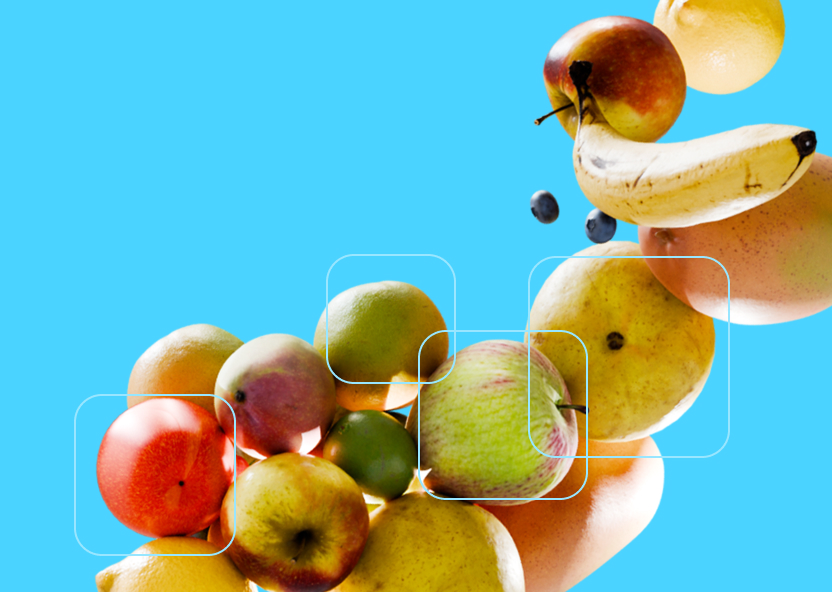
Fruit counting from a photo, now at 99% accuracy
Clarifresh first introduced photo-based fruit counting for Pro users at 90% accuracy. This year it reached 99%, and it now works for every attribute configured for fruit counting.
The workflow stays the same. In the Clarifresh mobile app, the inspector photographs the attribute during the Attributes step, and the app records the count automatically. The inspector reviews the result and adjusts it if needed.
Minimum and maximum values across inspections
Averages are convenient, and they can hide a problem. A load can average within spec while a share of its cartons sits well outside it. Clarifresh now shows attribute minimum and maximum values in Reports, across as many inspections as you include.
To add minimum and maximum values, open Configure columns in Reports, find the attribute and select Range. The new column shows the minimum and maximum values, with the count in parentheses. When results are grouped, the range appears for each group.
The record after approval
A load can pass at origin and still be turned away at the distribution centre, or trigger a corrective action with the supplier. Without a structured place to record those outcomes, they end up in emails and phone calls, cut off from the inspection they relate to. Follow-ups attach them to the original inspection.
- Record what happened next. From the QC report, click Follow-up beside the approval status and choose Rejection or Corrective action. Accounts with a configured list of corrective actions pick from it, so records stay consistent across the team. How to add a follow-up
- See the full history on the report. The QC report shows Rejected, Corrective Action or the specific action selected, with notes in the Notes section, so anyone who opens it later knows what happened after the inspection.
Follow-ups never appear on the public QC report, so candid notes stay out of view of the supplier or customer who gets the report.
One summary for everyone reading the report
A full QC report is detailed by design, and a category manager or customer on the other end of the trade usually wants the outcome first. AI-generated summaries, currently in beta, give them a clear overview without working through every attribute.
- The report at a glance. A summary of a completed or approved QC report covers the overall outcome, key quality findings, significant defects and other notable results. How to generate a summary
- Reviewed before it’s saved. Click Summarize in the report’s Notes section, check the draft, then save it to Notes or discard it.
- Shared straight away. Once saved, the summary appears on the public QC report immediately, including reports already shared, so everyone sees the same headline drawn from the same data.
Running the QC operation
The last group of updates is about running the QC team itself, from preparing inspections before they start to understanding how long they take.
- Create and assign inspections from the desktop. QC managers can set up an inspection in Reports under More actions > Add new inspection, choosing the produce, process, standard and inspector. The inspector finds it in the mobile app with the My inspections filter, so arrival inspections can be ready before the truck pulls in.
- Start from what you already have. Creating an inspection from an existing QC report prefills its details for review. Accounts with an ERP integration can also pull in ERP data with the cloud button, as they would on mobile.
- See how long inspections take. Reports and internal QC reports now show inspection time in minutes and seconds, from the start of the inspection flow to completion. It stays internal, and over a season it gives managers a factual basis for staffing and for spotting products or processes that run long.
- Copy specs across produce. Users can now copy processes and standards from one produce to one or more others, then adjust.
Where QC data goes next
Taken together, this quarter’s updates extend a QC result in both directions. Inspections can be prepared before anyone handles the fruit, and the record carries on after approval through rejections, corrective actions and a summary anyone can read.
Existing customers can find step-by-step guides and videos for each feature in the Clarifresh Help Center. To see how these updates would work with your own products and suppliers, book a demo.